
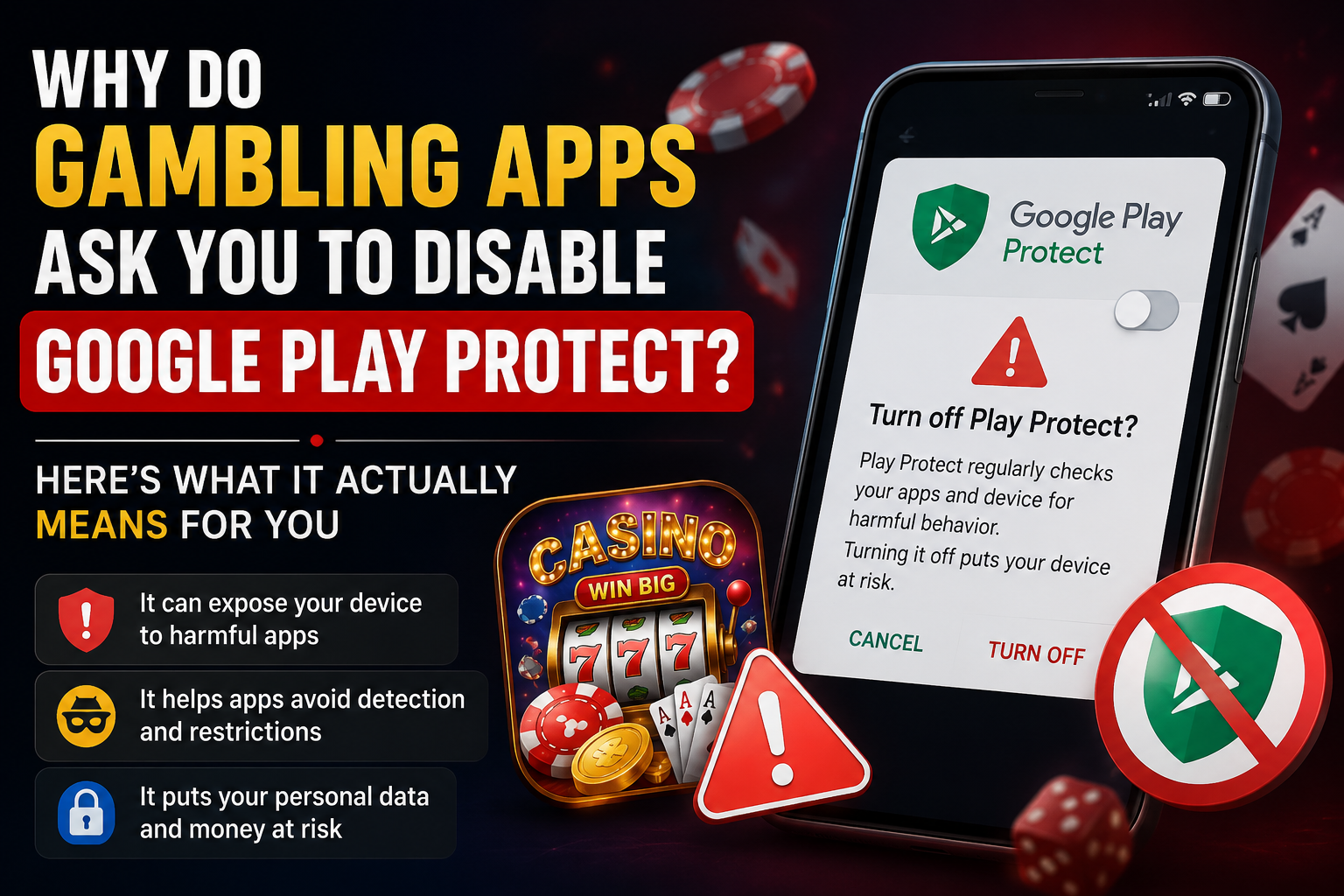
Learn (1) what Google Play Protect actually does and why it flags most gambling APKs by default, (2) why being told to disable it before installing is a warning sign rather than a normal step, (3) exactly what you’re exposed to once it’s turned off, and (4) a safer way to check an APK before installing it without switching your phone’s protection off entirely.
Table of Contents
What Google Play Protect Actually Does
Google Play Protect is a built-in scanning system on Android that checks apps for known malware, both before and after installation. It runs quietly in the background, scanning apps you install from the Play Store as well as APKs you sideload from outside it. When it detects something it considers unsafe or from an unverified source, it shows a warning before installation completes, or flags the app afterward and offers to remove it.
It isn’t a separate antivirus app you have to download — it’s built into Android itself and turned on by default on virtually every Android phone sold in Asia. That’s exactly why so many gambling APK guides mention it: it’s usually the very first thing standing between the download link and the app actually being installed.
1. Why Gambling APKs Get Flagged in the First Place
Play Protect commonly flags gambling APKs for reasons that are often unrelated to whether the app is actually malicious:
- They’re not distributed through the Play Store. Real-money gambling apps are banned from Google Play in most Asian markets, so every single one arrives as a sideloaded APK — a distribution method Play Protect treats with extra suspicion by default.
- They’re unsigned or use an unfamiliar developer certificate. Legitimate Play Store apps are signed and verified by Google; sideloaded APKs frequently aren’t, which alone can trigger a warning.
- Some genuinely are malicious. Because this entire category of app operates outside any app store review process, it’s also where fake, cloned, and malware-bundled APKs are most commonly found — so a portion of these flags are entirely accurate.
The important point: a Play Protect warning doesn’t tell you which of these reasons applies to the specific app in front of you. It’s a signal to slow down and check, not something to click past automatically.
2. Red Flag: Step-by-Step “Disable Play Protect” Instructions
This is where it gets genuinely concerning. Some APK download pages don’t just mention that you might see a warning — they give you a full walkthrough for turning Play Protect off entirely before you install anything: open Play Store settings, find Play Protect, turn off “Scan apps with Play Protect,” then proceed with the install.
That instruction should be treated the same way you’d treat a stranger asking you to turn off your home’s security camera before they come inside. A legitimate app doesn’t need your phone’s built-in scanner switched off — it just needs you to accept a one-time “install anyway” prompt, which Android already allows without disabling anything system-wide.
There’s a meaningful difference between:
- Bypassing one warning for one specific app you’ve decided to trust (normal, and how sideloading is designed to work), versus
- Disabling the scanner entirely, for every app, indefinitely (removes protection for everything on your phone, not just the app you’re installing).
Instructions that walk you toward the second option — rather than just the one-time install prompt — are doing more than helping you install a game.
3. What You’re Actually Exposed to With Play Protect Off
Once Play Protect’s scanning is turned off system-wide, the effect isn’t limited to the one app you were trying to install:
- Every app you sideload afterward goes unscanned, not just the gambling app — including anything installed later that you may trust even less carefully.
- Play Protect also periodically re-scans apps already on your phone. With it off, a malicious update pushed to an already-installed app is far less likely to be caught.
- You lose the “Google has flagged this as harmful” warning entirely, which is often the only independent signal you get before installing something dangerous, since sideloaded apps have no store reviews or ratings to check instead.
In practice, this means one gambling APK install can leave your entire phone’s scanning turned off for weeks or months afterward, since most people don’t remember to turn it back on.
4. How to Check If Play Protect Is On Right Now
Before installing anything, it’s worth confirming your current setting:
- Open the Google Play Store app.
- Tap your profile icon in the top right.
- Tap Play Protect.
- Tap the settings (gear) icon in the top right of that screen.
- Confirm “Scan apps with Play Protect” is turned on.
If you’ve followed a guide in the past that told you to turn this off, this is a good moment to turn it back on — you can still choose to install a specific app you trust without leaving the entire scanner disabled going forward.
5. A Safer Way to Check an APK Before Installing
If you want to install an APK that Play Protect has flagged, there’s a middle path that doesn’t require disabling anything:
- Scan the specific APK file yourself first, using virustotal.com — upload the file before installing and it will run the app through dozens of antivirus engines at once, not just Google’s.
- Check the permissions list the APK requests before installing (see our guide on casino APK permissions) — this tells you a lot independent of any scanner’s verdict.
- Use the one-time “install anyway” prompt for that specific app if you’ve decided to proceed, rather than disabling Play Protect system-wide.
- Turn scanning back on immediately after, if you did turn it off for any reason.
This gets you the same outcome — installing the app you’ve decided to try — without leaving your phone unprotected for everything else in the meantime.
learn more about what permissions should such apps ask For?
6. When (If Ever) Turning It Off Briefly Is Reasonable
There are legitimate developer and testing scenarios where scanning gets disabled temporarily — but for an ordinary player installing a gambling APK, there’s no functional reason the app itself needs Play Protect off rather than just being individually allowed past a single warning. If a download guide insists on the full system-wide disable rather than the simpler one-time bypass, that mismatch between what’s being asked and what’s actually needed is itself worth noticing.
Frequently Asked Questions
Does Play Protect flagging an app mean it’s definitely malware? Not necessarily. Many gambling APKs get flagged simply for being unsigned or distributed outside the Play Store, not because they’ve been confirmed malicious. But it does mean no independent check has cleared the app, so extra caution — like a VirusTotal scan — is worth the two minutes it takes.
Can I install one flagged app without turning off Play Protect for everything? Yes. Android lets you dismiss a single warning and install that one app anyway (“Install anyway” or similar prompt), without touching your global Play Protect setting at all. This is the safer option compared to disabling scanning entirely.
I already disabled Play Protect a while ago — what should I do now? Turn it back on using the steps above, then run a scan on your currently installed apps from Play Protect’s settings screen. If you’ve installed several APKs since disabling it, consider also running a scan with a trusted mobile security app.
Why doesn’t Google just allow gambling apps on the Play Store so this wouldn’t be an issue? Google’s developer policies restrict real-money gambling apps in most countries, particularly where local licensing requirements aren’t met — which is most of South and Southeast Asia. That policy is why sideloading exists as the only distribution path for this entire app category, and it’s unlikely to change per-app.
A Play Protect warning is one of the few independent checks you get before installing an app that no store has reviewed. Being told to switch it off — rather than just bypass it for one app — removes that check for your entire phone, not just the game you’re trying to install. If a download guide asks for the full disable rather than the simple one-time install prompt, that’s worth treating as a signal in itself.
This article is for informational purposes only and does not constitute legal or technical advice. Always exercise caution when installing apps from outside official app stores.